Posts

Install Google Optimize on Your Website

Image
This step is essential, but the way you do it depends on how you currently have your Google Analytics tracking set up. I will introduce two common approaches respectively. You can choose either one of them although I encourage you to try. 1. Install Optimize with optimize.js If you have manually entered your Google Analytics tracking code into your header (or another part of your site), which is exactly the same as discussed at section 2.1 of my another article, Install Google Analytics on your Website , all you need to do is copy and paste a new line of code into it as instructed:  1. Go to the container page of your Optimize account.   2. Add the following code to the top of the “<head>” tag on ALL the blog page you wish to optimize and click save button. 3. For more details about how to Install Optimize with optimize.js, refer to https://support.google.com/optimize/answer/9692472?hl=en&ref_topic=6197443.  2. Install Optimize with Google Tag Manager (GT...

Install Google Tag Manager on Your Website

Image
This approach is preferred if you want to apply more complex and customized tracking or you are new to use Optimize. I also recommend you to try this approach. 1. Set up Google Tag Manager If you don’t have a Google Tag Manager account:           a) Go to https://marketingplatform.google.com/about/tag-manager/.            b) Click on Start for Free.           c) Add your company’s name and country.           d) Set up the container’s name as your website’s name, select “Web” and click on Create.           e) Review the Terms of Service and click Yes.           f) You will be prompted with the web container installation code snippet If you do have a Google Tag Manager account:           a) Go to https://marketingplatform.google.com/about/tag-manager/.  ...

Install Google Analytics on your Website

Image
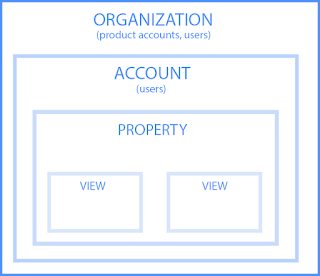
Google Analytics is a suite of website traffic tools that helps you monitor your website traffic as well as where your traffic is coming from and lots more. Thankfully, it’s super easy to add Google Analytics to Blogger. Since Blogger.com is a Google company, they’ve made the process beyond simple. 1. Sign Up for Google Analytics 1. Go to the Google Analytics web page. 2. Sign in using your Google account email. For Blogger.com, you can use the same email you used for your blog. Before proceeding, you may want to know the basic structure of Google Analytics. The following figures show the hierarchy of organizations, accounts, users, properties, and views, and two structures of two Analytics accounts and in Google Analytics.   So, you can have multiple Analytics accounts and at least one property is created in Analytics account. Put it simply,  An organization represents a company, and lets you access your company’s product accounts (e.g., Analytics, Tag Manager, Optim...

A/B Test with Google Optimize

Image
 In this article, I will show you to launch an A/B test experiment via Google Optimize.  1. Overview 1.1 Tools and Materials Blog article on Blogger.com Google Analytics (GA) Google Optimize (GO) Google Tag Manager (GTM) 1.2 Workflow 1.3 Hypothesis In the implementation, I built a blog on Blogger.com which is a blog-publishing service that allows multi-user blogs with time-stamped entries and I want to improve the search volume of it on the Internet. Before creating your first  experiment  you need to identify a problem, then create a hypothesis about what you can change to improve it.  To do so, I need to clarify a feature that can be added to my site to improve exposure on the search engine. In this example, I hypothesize that adding alternative text for figure element can improve the rank of the blog in the search list . Next, I will show how to design an A/B test by google optimize to test this hypothesis. 2. Blogger Article Preparation Blogger is ...